Control panel guide
The control panel captures audio, configures translation, and manages what viewers see. The features below follow the order you would actually use them.
1. Open the control panel
After signing in, go to “My sessions”. Under “Start a new session”, enter a Session ID (letters, digits, - and _, 4–64 characters) and press “Start session” to open the control panel. Existing sessions can be reopened from the list below by pressing “Panel”.
Creating your own room requires live access; a positive credits balance also grants access. Invited co-owners need no credits of their own and no separate activation; the room is free under the primary owner’s manual or scheduled grant, and only without a valid grant is the primary owner’s balance charged.

2. Interface overview
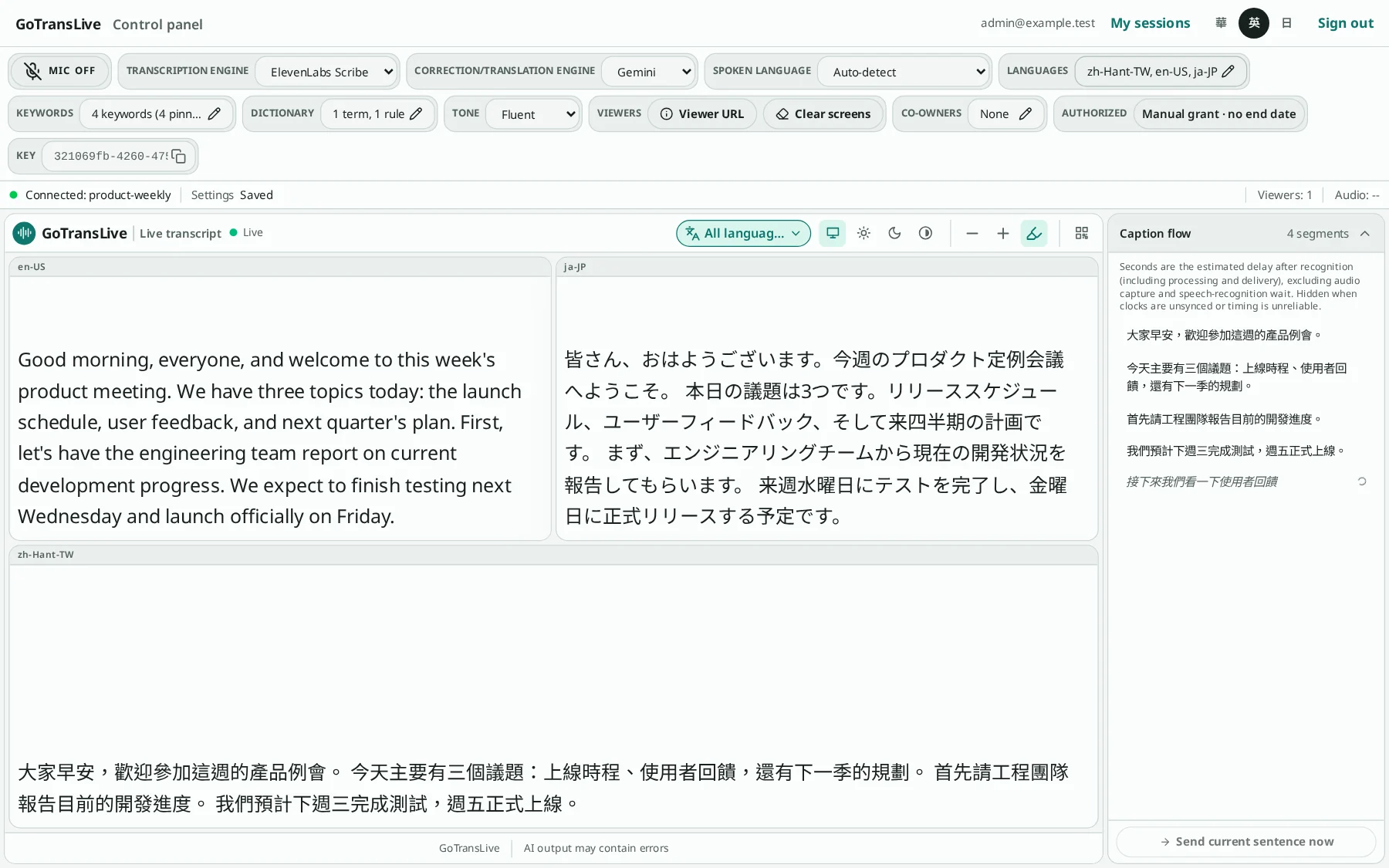
The control panel has three areas: the toolbar and status bar at the top; a live preview of the viewer page in the middle; and “Caption flow” on the right, listing the most recent source segments.
3. Toolbar and status bar
Toolbar settings are saved automatically; the “Settings” field in the status bar shows the save result.
- KEY
- This session’s control panel key. Click to copy it.
- MIC OFF / MIC ON
- Turns the microphone on or off; choose the microphone device next to it. While on, the button background reflects the input volume. On mobile, the status bar also has a fixed-size round microphone button so you can toggle it without expanding the controls; its volume background fills from bottom to top.
- Transcription engine
- Speech transcription engine: server default, ElevenLabs Scribe, or Gemini Transcribe.
- Spoken language
- The language the speaker uses; leave it on “Auto-detect” if unsure.
- Keywords / Dictionary / Languages
- Open the matching settings dialog; see the sections below.
- Viewers
- “Viewer URL” creates a share link; “Clear screens” temporarily clears the text on all viewer pages without deleting the saved transcript.
- Tone
- Translation tone: fluent, formal, casual, literal, or custom.
- Co-owners
- Visible only to the primary owner; used to invite other accounts to operate together.
- Status bar
- Connection status, settings save status, viewer count, and audio duration. When the controls are collapsed on mobile, the status bar stays; view grant or Credits information from the expanded toolbar.
- Live transcription access
- When the primary owner’s manual activation or scheduled grant is in effect, the toolbar shows the granted period and “No credits charged”, and hides Credits, usage limits, and low-balance reminders. Manual grants show no end date; scheduled grants show the start and end in local time, or no end date if none is set. Co-owners see the primary owner’s grant; a personal grant is never applied to someone else’s room.
- Credits
- Without a valid manual or scheduled grant, the toolbar shows the balance, this room’s rate, and the estimated time remaining (m:ss; h:mm:ss from one hour), and clicking it opens the details. Input audio costs 1 credit per minute, plus 1 credit per minute for each active translation output language; a separate output in the speaker’s own language is also charged, while the source/corrected display is not. Billing is proportional to the audio received (including silence). Each time the mic is turned on, you are reminded once at 5 minutes and once at 1 minute remaining; a dismissed reminder does not reappear.
- Room usage limits
- While Credits are billed, expand “Room usage limits” in the details dialog. The primary owner can set a cumulative budget and a maximum per-minute rate; co-owners have read-only access. It can still be changed from “My sessions” after the balance runs out. During a valid manual or scheduled grant the limit is suspended, and its values and accumulated usage are kept; checks resume when the grant ends, and a 0 budget or exceeding the limit stops further audio capture. After a stop, turn the mic back on yourself; if balance and limit allow, billing continues in credits when the grant expires. Refunds do not reduce accumulated usage. When a room is archived, its accumulated usage and limits stay with it in History; a new room created with the same ID starts from zero.
- Usage history and service failures
- The Credits account records only audio that was actually charged, showing room, sender, output languages, duration, and charge; during a free grant, audio usage is still recorded but no credit transaction is added. While Credits are billed, accepted silence or a disconnect on your side is still charged; once a service failure is confirmed, an administrator checks the capture ID and refunds charges not yet refunded. Refunds are not automatic.

4. Start transcribing
After checking the transcription engine and spoken language, press “MIC OFF” to start capturing audio; the browser asks for microphone permission the first time. When the button changes to “MIC ON”, capture has started, and the red fill inside the button follows the volume. Once you speak, captions appear in order in the preview and the caption flow.
Press it again to stop capturing; any unfinished sentence is sent when you stop. Switching the microphone device while recording restarts capture automatically.
If the last transcript is more than 1 hour old, opening the panel asks whether to “Continue previous session” (new captions follow the existing transcript) or “Start new session” (the previous session is ended and its transcript moved to History, then capture starts in the cleared room). “Decide later” asks again when you turn the mic on, where “Cancel” leaves the mic off; once you choose, this panel does not ask again.
5. Set translation languages
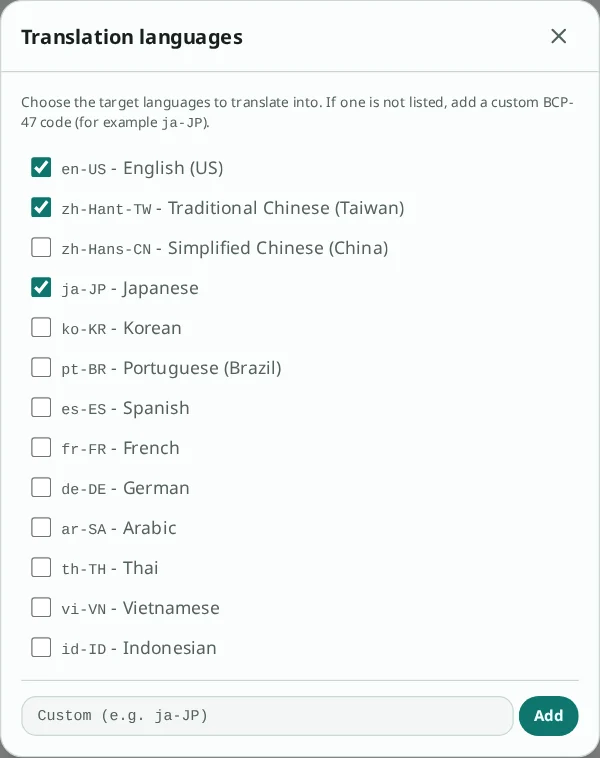
Click “Languages” in the toolbar and check the target languages to translate into. Languages not in the list can be added below by entering a BCP-47 code (e.g. ko-KR). How many you can select depends on your account limit.
6. Keywords
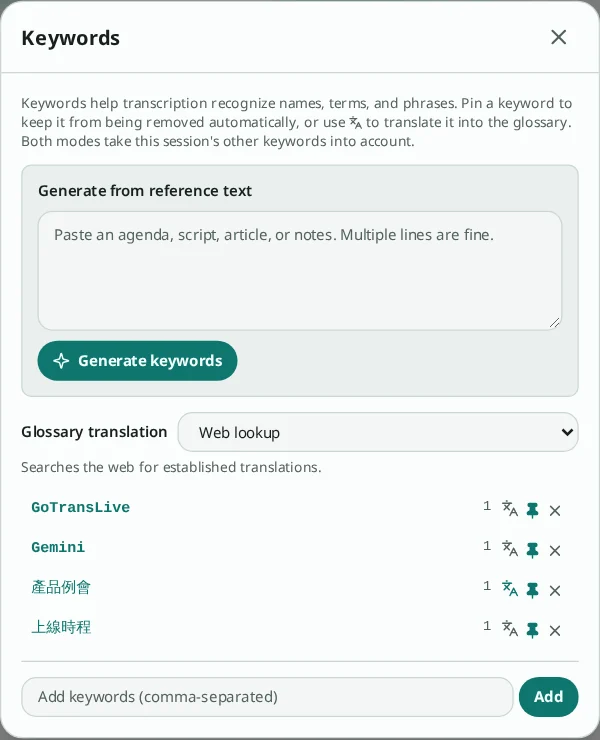
Keywords help transcription recognize names, terminology, and proper nouns. Type them directly (separate multiple with commas), or paste an agenda or script and press “Generate keywords”.
Keywords you type and add are pinned automatically; keywords generated from reference text are not pinned and do not change the pin state of existing keywords.
Each keyword has three buttons on its right: look up the term and add it to the glossary, pin (prevents automatic removal), and remove.
7. Dictionary
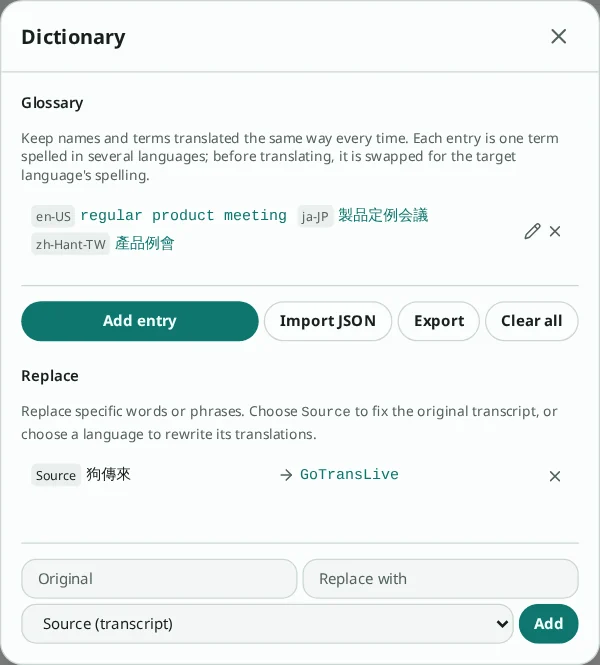
The “Glossary” keeps a fixed translation of the same term in every language. Press “Add entry” to enter how it is written in each language (at least two), add it from a keyword lookup, or import/export JSON.
“Replace” rules swap specific words or phrases for the text you specify: choose “Source (transcript)” as the target to fix the source text, or choose a language to change only that language’s translation. For example, replace the often-misheard “狗傳來” with “GoTransLive”.
8. Share with viewers
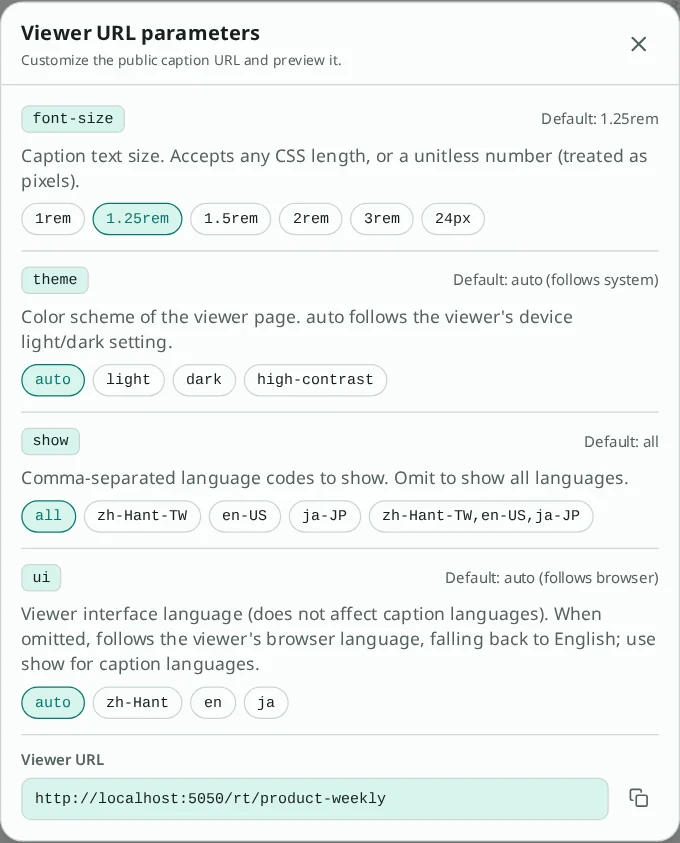
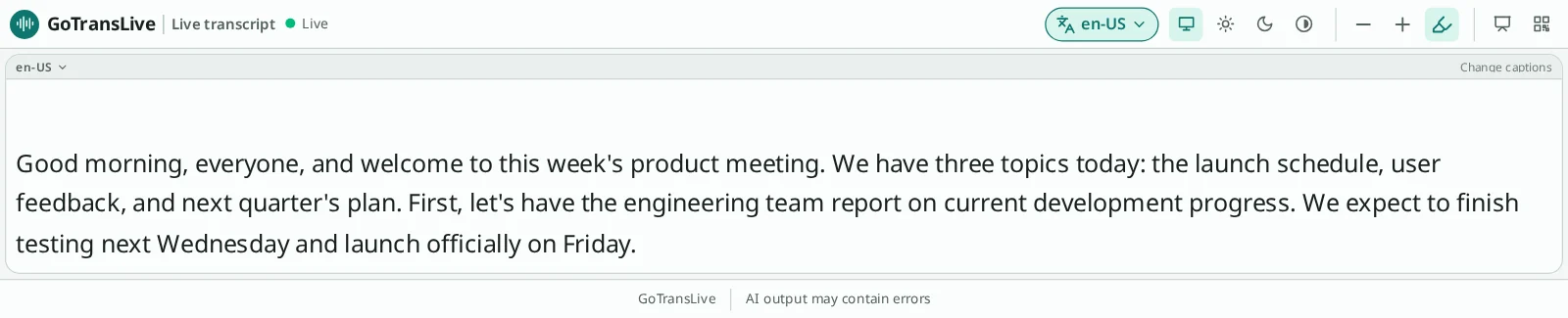
Click “Viewer URL” to adjust font size, colors, and displayed languages; the URL below updates instantly. Copy it with the button on the right and share it with viewers. Viewers don’t need to sign in; they open the URL and choose the language they want.
The show language options are generated from this session’s target languages, including custom language codes; choose a single language, a full combination of languages, or all to show every language. When you change the session’s language settings, the options update accordingly.
9. Correct captions
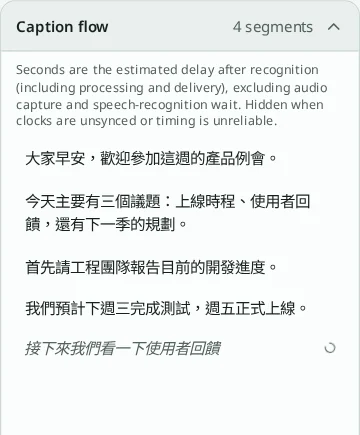
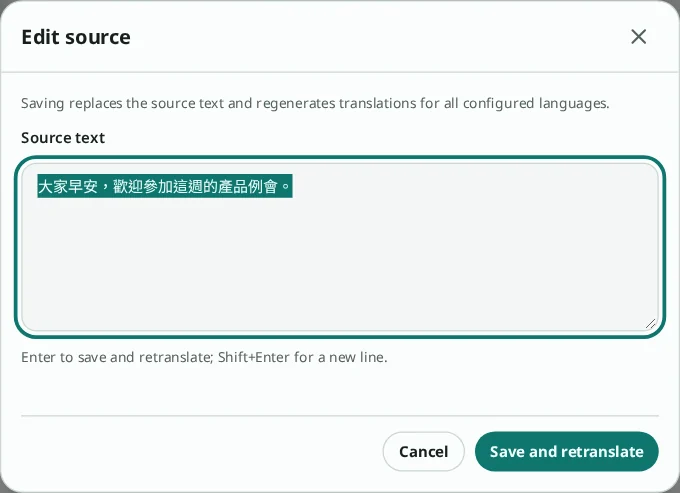
In the caption flow on the right, gray italic text is a sentence still being recognized; the rest are finished segments, and the number on the right is the delay in seconds. Click any finished segment to edit its source text; “Save and retranslate” replaces the source and regenerates the translations in all languages.
Scrolling up in the caption flow stops auto-follow, and the segment you are reading stays in place instead of being pushed away by new captions; press “Latest” below or scroll back to the bottom to resume following.
Sentences still being recognized can’t be edited directly (the next recognition update would overwrite them). Click a gray italic sentence to open “Add source replacement rule”: select the wrong text in the frozen recognized text, enter the correct spelling, and add it. The rule then applies to all in-progress and finished sentences, just like a “Source (transcript)” replace rule in “Dictionary”. Saved segments and captions viewers have already seen are not changed retroactively; click a segment to edit it if needed.
When the speaker doesn’t pause and the in-progress sentence keeps growing, you can press “Send current sentence” below the caption flow while capturing, as soon as you hear a sentence end. The sentence is split where you pressed, and after the recognition service responds (up to about 1.5 seconds) it becomes a finished segment and translation begins. The last few words not yet recognized on screen are included, and even a short sentence won’t wait to be merged with what follows.
“End session”, to the right of “Send current sentence”, moves the current transcript to History (edit and download it from “My sessions”) and clears the room for further use; the Session ID, viewer link, settings, and co-owners stay the same. It is unavailable while the microphone is on, so turn the mic off first; unfinished sentences and translations are sent before the session ends.
10. Co-owners
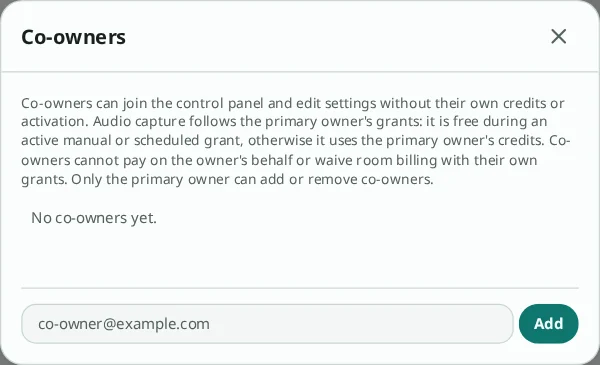
The primary owner can invite co-owners by email. Co-owners need no credits of their own and no separate activation, and can operate the control panel and change settings. The room is free under the primary owner’s valid manual or scheduled grant, otherwise the primary owner’s credits are charged; co-owners can’t pay instead or waive billing with a personal grant. Only the primary owner can add or remove other co-owners; removing one revokes access and rotates the control panel key.